The sidebar
Every control on the panel that opens beside a LinkedIn profile.
The sidebar opens on every LinkedIn profile you visit. It is RolodexIn's own panel — nothing is added to or changed inside LinkedIn's own page.
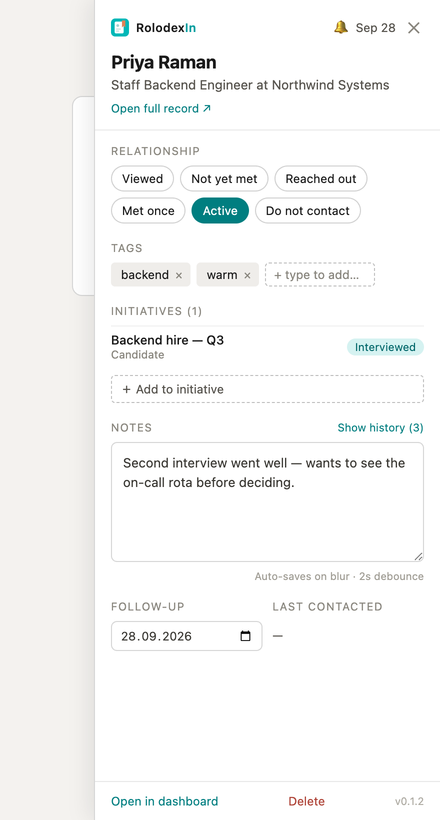
The header
The person's name and headline are read from the page and are not editable here; they follow whatever LinkedIn shows. A bell with a date appears when the contact has a follow-up set. Open full record ↗ syncs the contact first and then opens their page in the dashboard.
Relationship status
A row of pills, one of which is always selected: Viewed · Not yet met · Reached out · Met once · Active · Do not contact. Selecting one saves it immediately.
Viewed is where a contact starts, because visiting a profile creates the record before you have asserted anything about the person.
Tags
Type a word and press Enter to add it; click the × on a pill to remove it. Tags are plain strings you invent — there is no fixed list and nothing to configure — and the dashboard can filter on any of them.
Notes, and their history
The box holds your most recent note. While you type, a draft is kept locally; the note is committed as a timestamped entry when you click away from the box. So one editing session produces one entry rather than one per pause, and saving the same text twice in a row does not produce two.
Earlier entries are not replaced. Show history reveals them newest first, each with its timestamp, and with an edited marker where an entry was changed later. Nothing in that history is overwritten by a new note.
The follow-up reminder
A date picker. Setting a date replaces whatever reminder that contact had — there is one active reminder per contact, not a list — and clearing the date clears it. When it comes due your browser notifies you, and clicking the notification opens that person's profile.
Your browser asks for notification permission the first time you set a reminder, not when you install the extension. See Reminders.
Campaigns
Under the annotations sits the list of campaigns this person is in, each with the stage they are at, plus one control to add them to another. Adding is one click: they land in the first stage with no role, and you refine that in the dashboard. With no campaigns at all the block is a single line, so it costs nothing until you use the feature. See Campaigns.
Collapsing and reopening it
The ✕ collapses the panel to a small floating R button, and that button reopens it. If you closed it and the button is not there either, open the RolodexIn button in your browser toolbar — it carries an Open sidebar row for exactly this.
The two bars at the top
Both are amber, and both describe an account state rather than a fault:
- "Not synced — sign in to save to RolodexIn" — you are signed out. Your edits are still cached and queued, and they sync when you sign in.
- A plan-limit bar — your last write was refused because the account is at one of its limits. It states the count, the cap, and links to the plan cards. It does not appear where it would not be true: a per-contact note limit belongs to that contact, and the contact cap never applies to someone you already hold.
Deleting a contact
The footer carries Delete, behind a confirmation. It is a soft delete: the record is removed from every view immediately and purged for good after 30 days. The slot it occupied against your plan is freed straight away.
While you are offline
Everything above keeps working. Writes go to the local cache first and queue for the server, retrying by themselves when the connection returns.